
Snowflake and Power BI continue to be a common pairing in enterprise analytics stacks. Snowflake handles large scale data storage and processing in the cloud, while Power BI is used to build reports and dashboards that business teams rely on for day-to-day decisions.
Connecting the two is a standard step in most data setups. The way data is structured in Snowflake, how queries are executed, how access is managed, and how costs are controlled all have a direct impact on how Power BI performs in a production environment.
There are multiple ways to establish this connection today. Native connectors are widely used, and they work well in many scenarios. At the same time, some teams prefer using specialized connectors or drivers to get more control over authentication, performance consistency, and deployment across Power BI Desktop, Service, and gateway layers.
This guide lays out a practical approach to building a scalable Snowflake to Power BI integration in 2026. It covers how to prepare your environment, how to think about data modelling, what to consider while choosing connectors, and how to manage performance, security, and governance as the setup grows.
Preparing Snowflake for Power BI Integration
Before Power BI connects, the Snowflake side needs a bit of structure. Skipping this step usually does not break anything immediately, but it does make things harder to manage once reporting usage increases.
A common approach is to keep BI workloads separate from data engineering activities. Many teams set up a dedicated virtual warehouse for Power BI queries, so reporting does not compete with ingestion or transformation jobs. It also makes cost tracking simpler since usage is easier to isolate. Auto suspend is usually enabled here so computers do not keep running when dashboards are idle.
Access control is another area that needs to be defined early. Snowflake’s role-based access control works well for this, but only when roles are planned properly. Creating a dedicated BI role helps ensure Power BI only touches the datasets meant for reporting. Keeping permissions tight avoids unnecessary exposure and keeps governance clean as more users come in.

On the data side, it helps to avoid pointing Power BI directly at raw tables. Most teams maintain a separate reporting schema with curated and cleaned datasets. These are shaped for analytics use, so queries stay predictable and easier to optimize later.
A typical setup for BI workloads in Snowflake includes a few key components:
- Dedicated warehouse to handle reporting queries.
- Reporting schema with curated tables and views
- BI role to manage access permissions.
- Storage or external integration if outbound data movement is needed.
Designing a BI Ready Data Model in Snowflake
Even with Snowflake handling scale quite well, the way data is structured still decides how smoothly Power BI reports run. A lot of performance issues people notice later usually trace back to how the model was designed in the beginning.
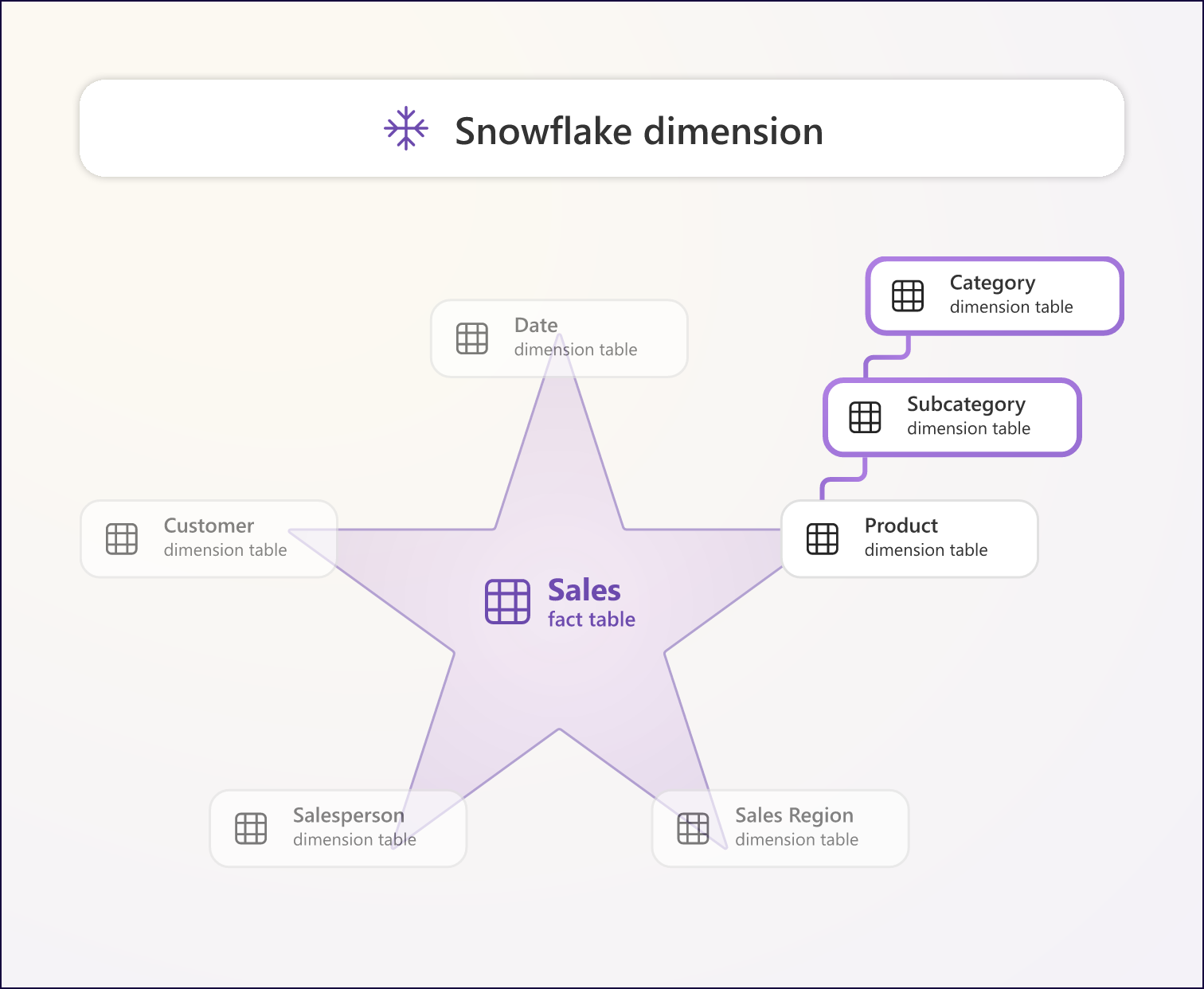
Most BI teams stick with a star schema for a reason. You keep a central fact table for measures and surround it with dimension tables for context like date, customer, product, and so on. It keeps queries simpler and Power BI does a better job when relationships are clean and predictable.
For larger datasets, relying only on raw tables is rarely enough. Teams often create aggregated tables or use materialized views for commonly used metrics. This reduces the amount of data Power BI needs to scan every time someone interacts with a report. Snowflake’s dynamic tables and materialized views help here since they keep precomputed data reasonably fresh without manual effort.
Learn More – Building Semantic Search in Snowflake: A Practical Guide for Data Engineers
Another thing that makes a noticeable difference is how closely the Snowflake model matches how reports are built in Power BI. If analysts are constantly joining multiple large tables or reshaping data inside Power BI, it usually points back to gaps in the warehouse layer. When the model already reflects reporting needs, queries stay lighter and easier to tune over time.
Selecting the Right Connector and Connection Mode
Once Snowflake is set up properly, the next decision is how Power BI will connect to it. This part often gets treated as a simple dropdown choice, but it has a direct impact on performance, security, and how stable things feel across environments.
Power BI gives you a few ways to connect to Snowflake. The native connector is the default option and works well for many setups. There are also ODBC based approaches that some teams still use, though they are not the first choice anymore. More recently, connectors built on Arrow based connectivity have started gaining attention since they move data in a more efficient, columnar format, which helps with query performance.
For smaller or straightforward use cases, the native connector is usually enough. Once you move into larger deployments, things like authentication methods, consistency between Power BI Desktop and Service, and gateway behavior start to matter more. That is where teams begin evaluating more controlled or standards-based connectors that handle these aspects more predictably.
The connector is only one part of the decision. The connection mode in Power BI plays an equally important role. You typically work with three options:
- Import mode loads data into Power BI’s memory model. Queries run during refresh, which keeps report interactions fast and helps control Snowflake compute usage.
- DirectQuery keeps queries running live against Snowflake. This is useful when data needs to stay fresh, but it depends heavily on how well queries are optimized.
- Composite models combine both approaches, allowing some data to be cached while other parts stay live. This is useful in mixed reporting scenarios.
The choice here depends on how the reports are used. If refresh cycles are acceptable, import mode keeps things predictable and cost efficient. If reports need near real time data, DirectQuery becomes necessary, but it also means the underlying queries and connector behavior need to be solid.
In larger setups, especially with DirectQuery or heavy datasets, the connector choice starts to matter more than expected. Efficient query pushdown and stable connectivity make a noticeable difference in how reports perform across Power BI Desktop and the Service.
Configuring Incremental Refresh in Power BI
When datasets start getting larger, refreshing everything every time stops making sense. It increases load on Snowflake and takes longer than most teams are comfortable with, especially when reports need to stay updated regularly.
Incremental refresh solves this in a practical way. Instead of reloading the full dataset, Power BI only pulls in new or updated records. The key requirement here is to have a reliable way to track changes in Snowflake.
Most teams handle this by maintaining a timestamp column such as last_updated or using a date-based partition field. Power BI uses this information to figure out what needs to be refreshed and what can be left untouched.
Learn More – Aspects that make Power BI Advantageous for all your Manufacturing Operations
Setting this up is not complicated, but it does need a bit of discipline in how data is managed. A typical flow looks like this:
- Add a last_updated or similar column in Snowflake tables.
- Define incremental refresh policies inside Power BI
- Test the behavior with smaller datasets before scaling.
- Publish the model and schedule refresh in Power BI Service
Once this is in place, the difference is quite noticeable. Refresh cycles become faster, and Snowflake does not get hit with unnecessary full table scans every time a dataset updates.
Optimizing Performance and Cost Controls
on cost. Every interaction in a report can trigger queries in the background. Multiply that across users and dashboards, and the numbers start adding up faster than expected.
A lot of this comes down to how reports and queries are designed. Small adjustments here make a noticeable difference without needing any major changes to the platform.
Some practical things teams usually keep in check:
- Keeping the number of visuals per page under control so queries do not stack up during interactions.
- Letting Snowflake reuse results through query caching wherever possible
- Using a warehouse that is sized for BI usage instead of sharing it with other workloads.
- Adding query tags to track what is coming from Power BI and what is not.
Implementing Security and Access Governance
Once Power BI is connected to Snowflake, access is no longer limited to backend teams. Business users, analysts, and different roles across the organization start interacting with the same data.
Snowflake’s RBAC model handles access control at multiple levels, including schemas, tables, and even columns. Defining roles properly makes it easier to control who can see what without creating too many exceptions later. A dedicated BI role, along with clear role hierarchy, keeps things manageable as usage grows.
On the Power BI side, row level and column level security add another layer. This is where you can restrict what a user sees inside a report without changing the underlying dataset. When both layers are aligned properly, access stays consistent across the warehouse and the reporting layer.
Authentication also needs to follow current enterprise practices. OAuth and key pair-based authentication are commonly used since they remove dependency on passwords and make identity management easier to handle at scale.
For teams using specialized connectors, most of them support these authentication methods and provide guidance for setting them up correctly.
Deploying and Monitoring the Integrated Solution
Most teams follow a structured release flow using Power BI Deployment Pipelines. Reports move through development, testing, and production stages with controlled changes at each step. It helps avoid situations where something gets updated directly in production without proper validation.
Monitoring needs to cover both sides of the setup. At the end of the Snowflake, query history and usage of metrics give a clear view of how much computing is being consumed and which queries are heavier than expected. This is usually the first-place teams look at when performance or cost questions come up.
On the Power BI side, monitoring is more about dataset behavior and report usage. Refresh failures, dataset sizes, and concurrent usage patterns give a good sense of how stable the reporting layer is. These signals help catch issues early before users start noticing them.
Learn More – A Comprehensive Guide to Migrate Legacy Data Warehouses to Snowflake
For setups that rely on scheduled refresh or hybrid connectivity, gateway configuration also plays a role. Keeping gateway setups stable and aligned with refresh schedules ensures data stays up to date without unexpected failures.
Snowflake to Power BI Integration Checklist for Production Readiness
- Dedicated Snowflake warehouse created for Power BI workloads.
- Reporting schema with curated tables or views ready for BI use
- RBAC roles configured and validated for BI users and services.
- Data model aligned with reporting needs, minimal transformations inside Power BI
- Connection mode selected based on use case, Import, DirectQuery, or composite.
- Incremental refresh configured for large datasets where applicable.
- Snowflake query history and usage tracking enabled.
- Reports reviewed for excessive visuals or inefficient queries.
- Deployment pipeline defined across development, testing, and production.
- Gateway setup validated and refresh schedules tested.
Get Started
Connecting Snowflake and Power BI is easy to get started with, but the way it is set up decides how well it holds up later.
A clean data model, the right connection approach, and basic controls around performance and access go a long way in keeping things stable as usage grows.
If you are setting this up or refining what you already have, a bit of structure early on saves a lot of effort down the line. Stridely works with teams on Snowflake and Power BI implementations and integration. Contact us today.